

Introduction: My Privacy Wake-Up Call
Since then, I have followed a strict rule:
Never give your phone to anyone, unless App Pinning is enabled.
Once, I thought handing my phone to a friend for a quick call was harmless. That small act almost exposed my personal emails, banking apps, OTP messages, and private photos.
After a bit of research, I discovered Android App Pinning, a hidden feature that locks your phone to a single app, preventing anyone else from accessing your personal data.
This article will walk you through everything I learned—how it works, why it’s essential, and how you can enable it in minutes.
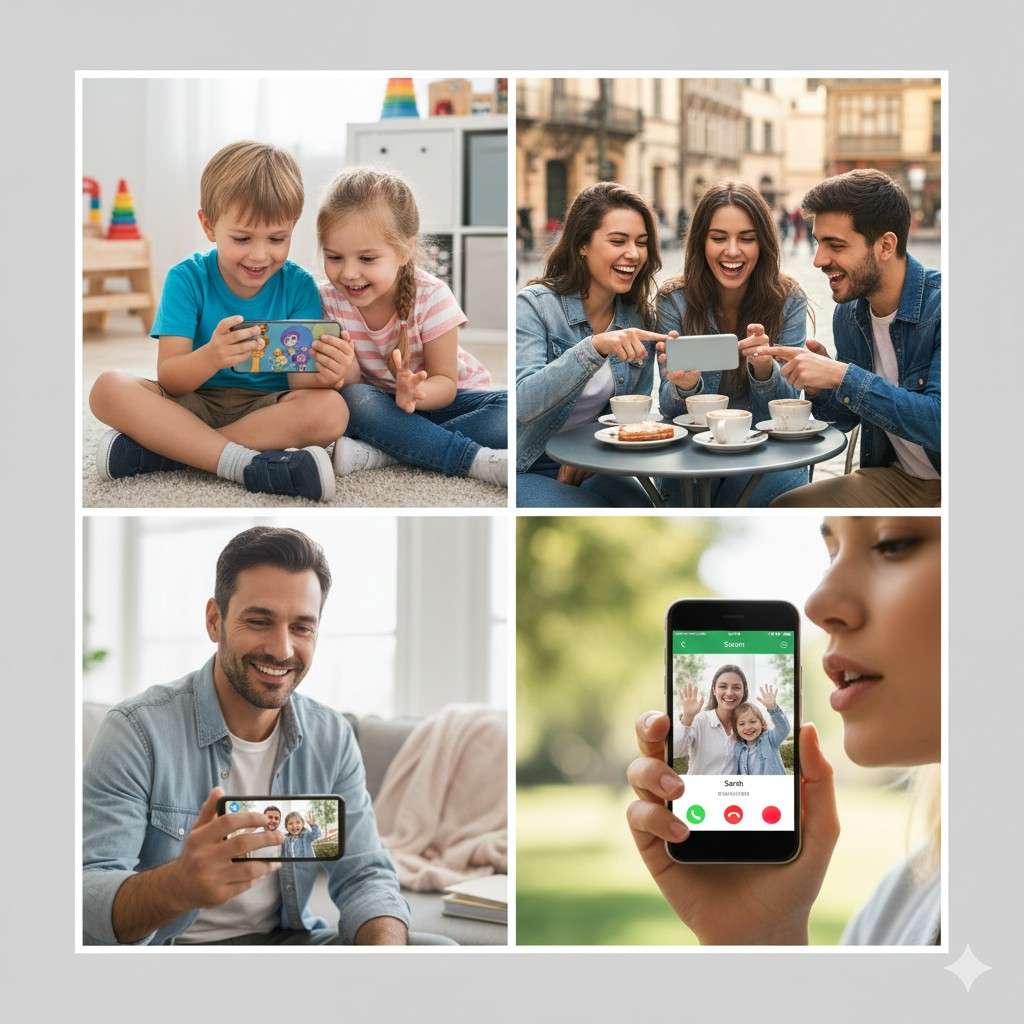
What Is App Pinning?
App Pinning is an Android feature that allows you to lock your device to a single app. When someone holds your phone in pinned mode:
- They cannot switch apps
- They cannot access the home screen or recent apps
- Notifications remain hidden
- Settings and other sensitive apps are blocked
Exiting pinned mode requires your PIN, pattern, fingerprint, or face unlock, giving you complete control.
How to Enable App Pinning (Step-by-Step)
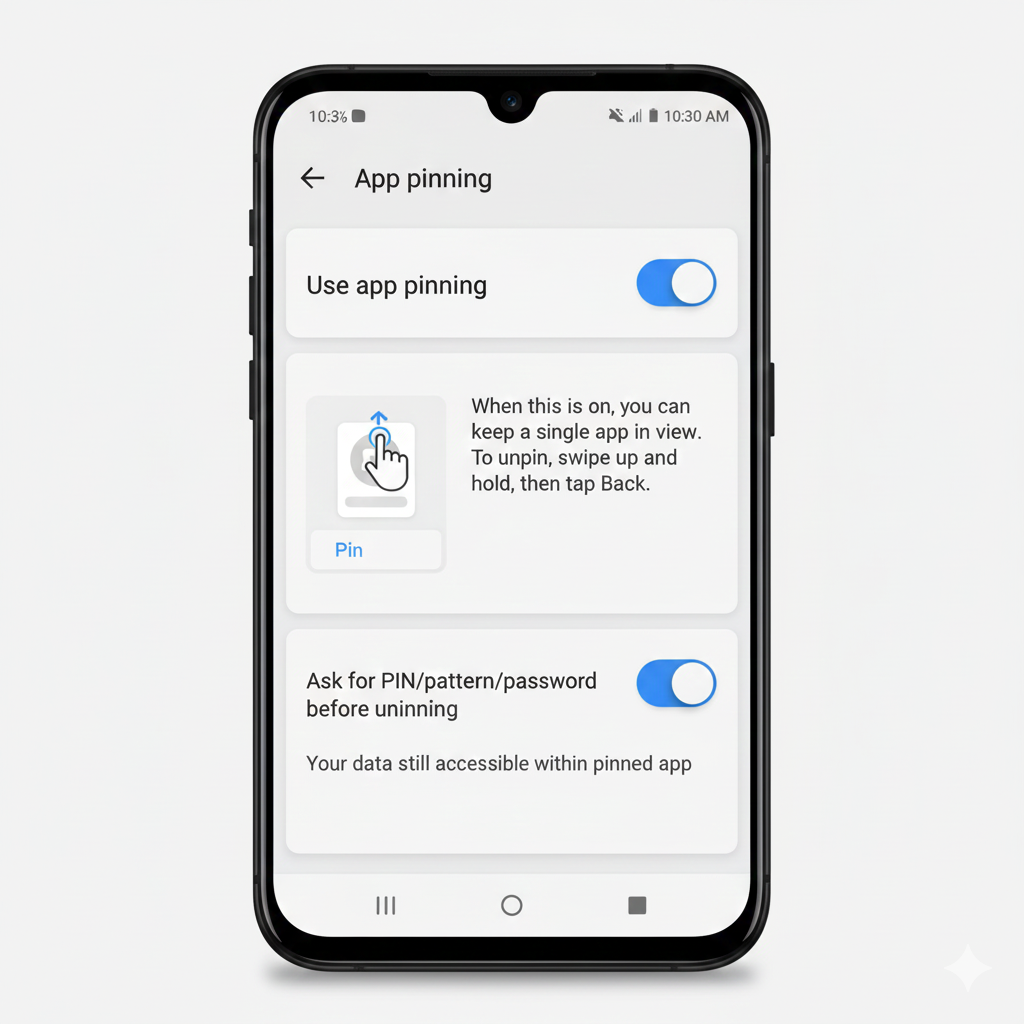
Follow these steps to activate App Pinning on your Android device:
Step 1: Open Settings
Go to Settings → Security & Privacy → Advanced (varies by brand).
Step 2: Locate App Pinning
Look for options named:
- App Pinning
- Pin Windows
- Screen Pinning
Step 3: Enable App Pinning
- Toggle App Pinning ON
- Turn on Lock device when unpinning (critical for security)
Step 4: Pin an App
- Open the app you want someone to use.
- Tap the Recent Apps button.
- Tap the app icon and select Pin.
Step 5: Exit Pinned Mode
Press Back + Recent buttons (or gestures) and authenticate using your PIN or biometric unlock.
Features & Specifications
| Feature | Details |
|---|---|
| Platform | Android |
| Android Version | 8.0+ |
| Cost | Free |
| Setup Time | <1 minute |
| Security Level | High |
| Internet Required | No |
| Biometric Support | Fingerprint, Face Unlock |
Special Features:
- Locks device to a single app
- Prevents accidental data leaks
- OS-level security—no third-party apps needed
- Compatible with all standard Android apps
Android devices or privacy accessories.
My Personal Experience & Practical Uses
I tested App Pinning in everyday situations:
- Lending phone for a call – The caller could only access the dialer.
- Showing photos to friends – They couldn’t scroll into private albums.
- Letting kids play games – They couldn’t exit to other apps.
- Sharing YouTube videos – Restricted to a single video app.
Practical Use Cases:
- Office or public environments
- Kids using your device
- Emergency situations
- Lending phone temporarily to friends or colleagues
Pros and Cons
✅ Pros
- Strong privacy protection
- Easy and quick to enable
- Works without extra apps
- Minimal battery impact
- Ideal for kids and shared use
❌ Cons
- Not enabled by default
- Exit method varies by phone brand
- Limited awareness among users
Ratings (Based on My Experience)
| Category | Rating |
|---|---|
| Ease of Use | ⭐⭐⭐⭐⭐ |
| Security | ⭐⭐⭐⭐⭐ |
| Performance | ⭐⭐⭐⭐⭐ |
| Practical Use | ⭐⭐⭐⭐☆ |
| Overall | 4.8 / 5 |
Comparison Tables
App Pinning: Current vs Previous Android Versions
| Feature | Older Android | Current Android |
|---|---|---|
| App Pinning | Limited | Advanced |
| Biometric Lock | No | Yes |
| Gesture Support | No | Yes |
| User Control | Low | Full |
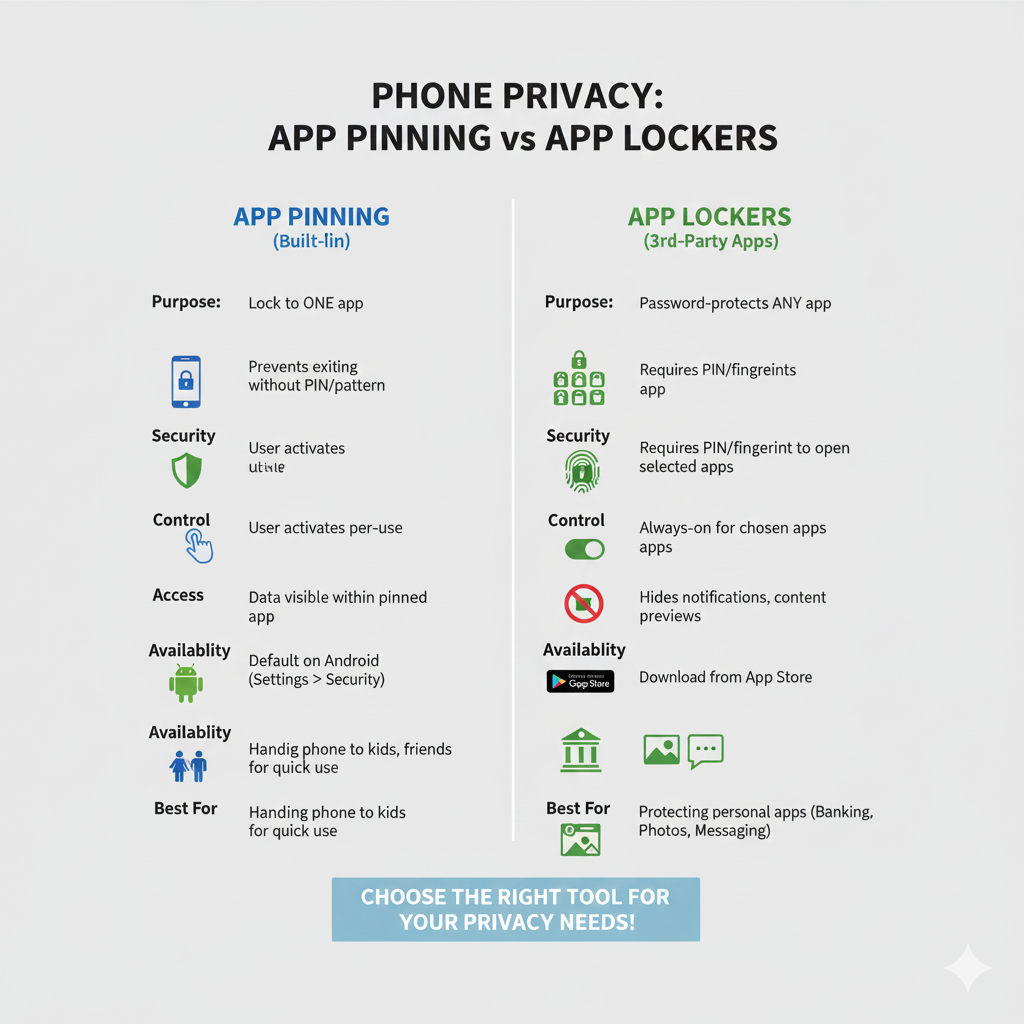
App Pinning vs Third-Party App Lockers
| Feature | App Pinning | Third-Party App Lockers |
|---|---|---|
| Cost | Free | Often Paid |
| Ads | No | Yes |
| OS-Level Security | Yes | No |
| Battery Usage | Minimal | High |
| Trust Factor | High | Medium |
Affiliate Link Placement #3: After comparison—link recommended phones or security tools.
Why You Should Avoid Third-Party App Lockers
I used multiple third-party app lockers before discovering App Pinning. Issues included:
- Persistent ads
- Subscription paywalls
- Background battery drain
- Privacy concerns
App Pinning solved all these problems without installing anything extra.
FAQs
Q1: Can App Pinning be bypassed?
No, without your PIN or biometric authentication, the pinned app cannot be exited.
Q2: Does App Pinning work on all Android brands?
Yes, including Samsung, Xiaomi, OnePlus, and more, though the menu location may differ.
Q3: Can I receive calls or notifications while App Pinning is active?
Yes, calls come through, but notifications remain hidden until unpinned.
Q4: Is App Pinning safe for kids?
Absolutely—it prevents children from accessing other apps or settings.
Q5: Does App Pinning require internet?
No, it works completely offline.
Trusted Sources & References
Final Verdict: Never Give Your Phone Without App Pinning
App Pinning has completely changed how I handle my phone. It’s:
- Free, fast, and easy to enable
- Extremely reliable and secure
- Perfect for kids, colleagues, or public use
If you value privacy, this single feature is essential. Do not hand your phone to anyone without enabling it first.
Learn more…https://news.zuaqtech.com/best-secure-web-browsers-2025/